Linkedin Campaigns & Statistics
Understand campaign stats on the Campaigns page, manage each campaign, and use View Queue, Actions Graph, and Activity Graph.
Use Linkedin Automation → Campaigns to manage your outreach campaigns and see how each one is performing.
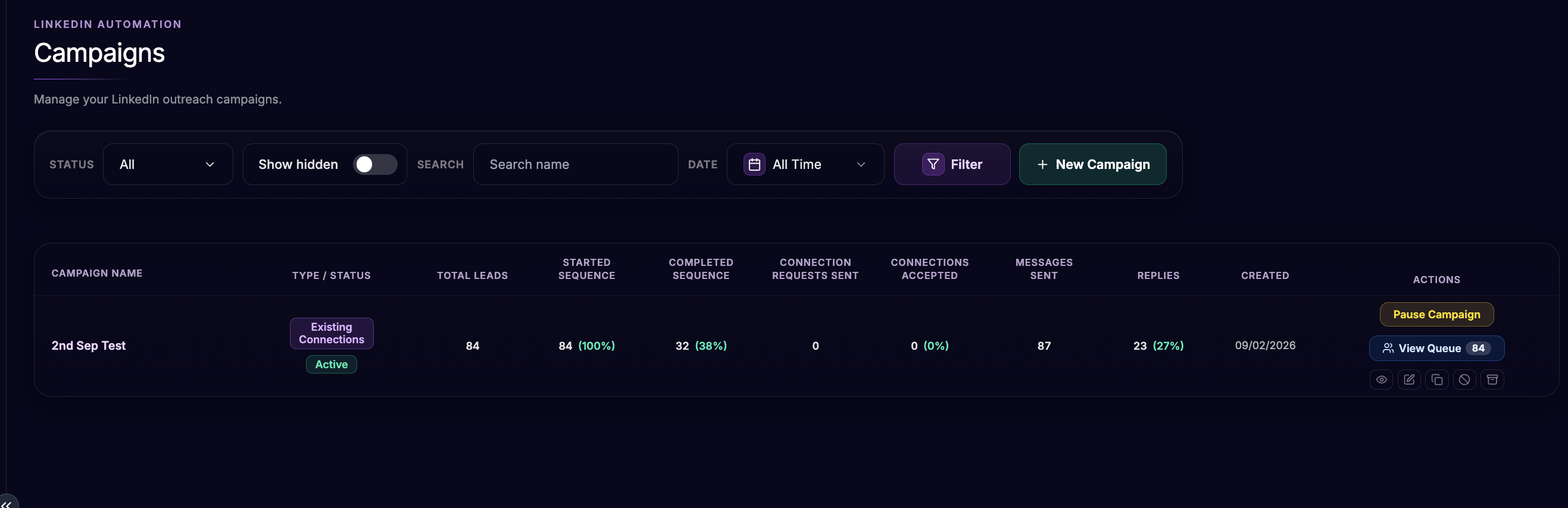
Step 1: Open Campaigns
In the sidebar, open LinkedIn Automation
Click Campaigns
Step 2: Filter the Campaign List
At the top of the page you can:
Status — All, Active, Paused, or Completed
Show hidden — include campaigns you’ve hidden from the list
Search — search by campaign name
Date — choose a date range (default is Last 7 Days)
The Date filter changes the statistics on each campaign row. It does not remove campaigns from the list.
Click Filter to apply your search and filters. Click New Campaign to create a new campaign.
Step 3: Campaign Statistics
Each campaign row shows these stats for the selected date range:
Total Leads — people in this campaign
Started Sequence — leads who have started the sequence (also shown as a % of Total Leads)
Completed Sequence — leads who finished the sequence (also shown as a % of Total Leads)
Connection Requests Sent — connection requests sent
Connections Accepted — accepted connections (also shown as a % of Connection Requests Sent)
Messages Sent — messages sent
Replies — people who replied (also shown as a % of Started Sequence)
Each row also shows the Campaign Name, Type (Existing Connections or New Connections), Status, and Created date.
Step 4: Campaign Actions
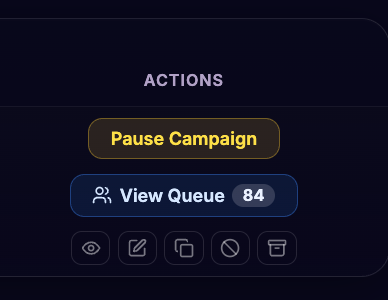
On each campaign you can:
Start Campaign — start a paused or draft campaign
Pause Campaign — pause an active campaign
View Queue — open the lead queue for that campaign
View Details — view the campaign setup and stats
Edit Campaign — change the sequence, settings, schedule, and webhooks
Copy Campaign — duplicate the campaign. Choose Copy all contacts, Copy NotStarted only, or Don't copy contacts (settings only, empty queue)
Hide from list / Unhide Campaign — hide or show the campaign in the list
Archive Campaign — archive the campaign (it leaves the main list)
You can only have 1 active campaign of each type per LinkedIn account at a time (for example one Existing Connections and one New Connections), to keep the account safe.
Step 5: View Queue
Click View Queue on a campaign to open Campaign queue.
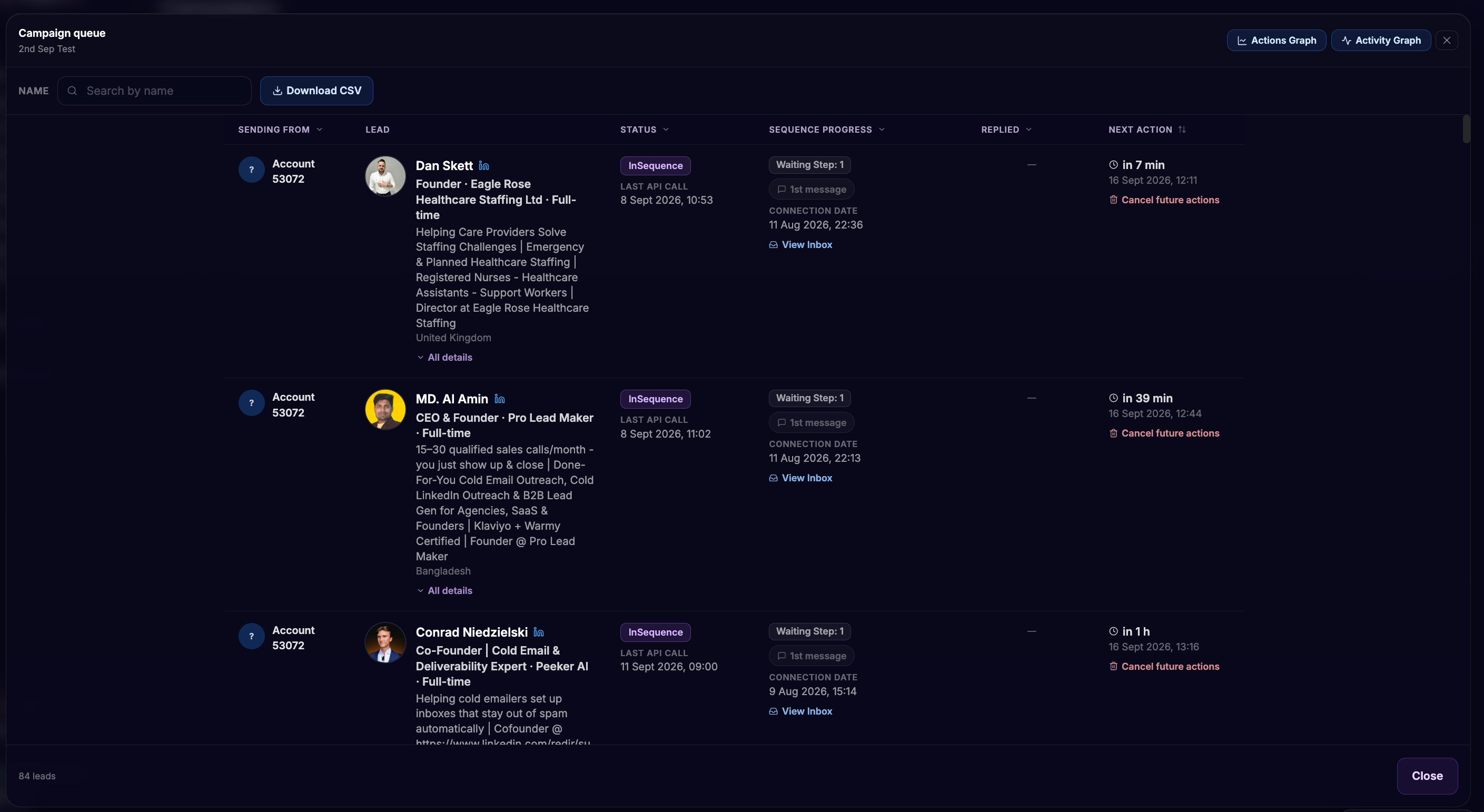
From here you can:
Search leads by Name
Filter by Sending From, Status, Sequence Progress, and Replied / Not Replied
See each lead’s status, sequence progress, next action, and whether they replied
Open View Inbox for a lead who has a conversation
Cancel future actions for a lead so remaining connection and message steps will not run
Download CSV of the visible/filtered queue
Queue columns include Sending From, Lead, Status, Sequence Progress, Replied, and Next Action.
Common statuses include NotStarted, InSequence, Completed, Replied, RequestSent, Failed, FilteredOut, and Blacklisted.
Step 6: Actions Graph
From the queue modal, click Actions Graph.
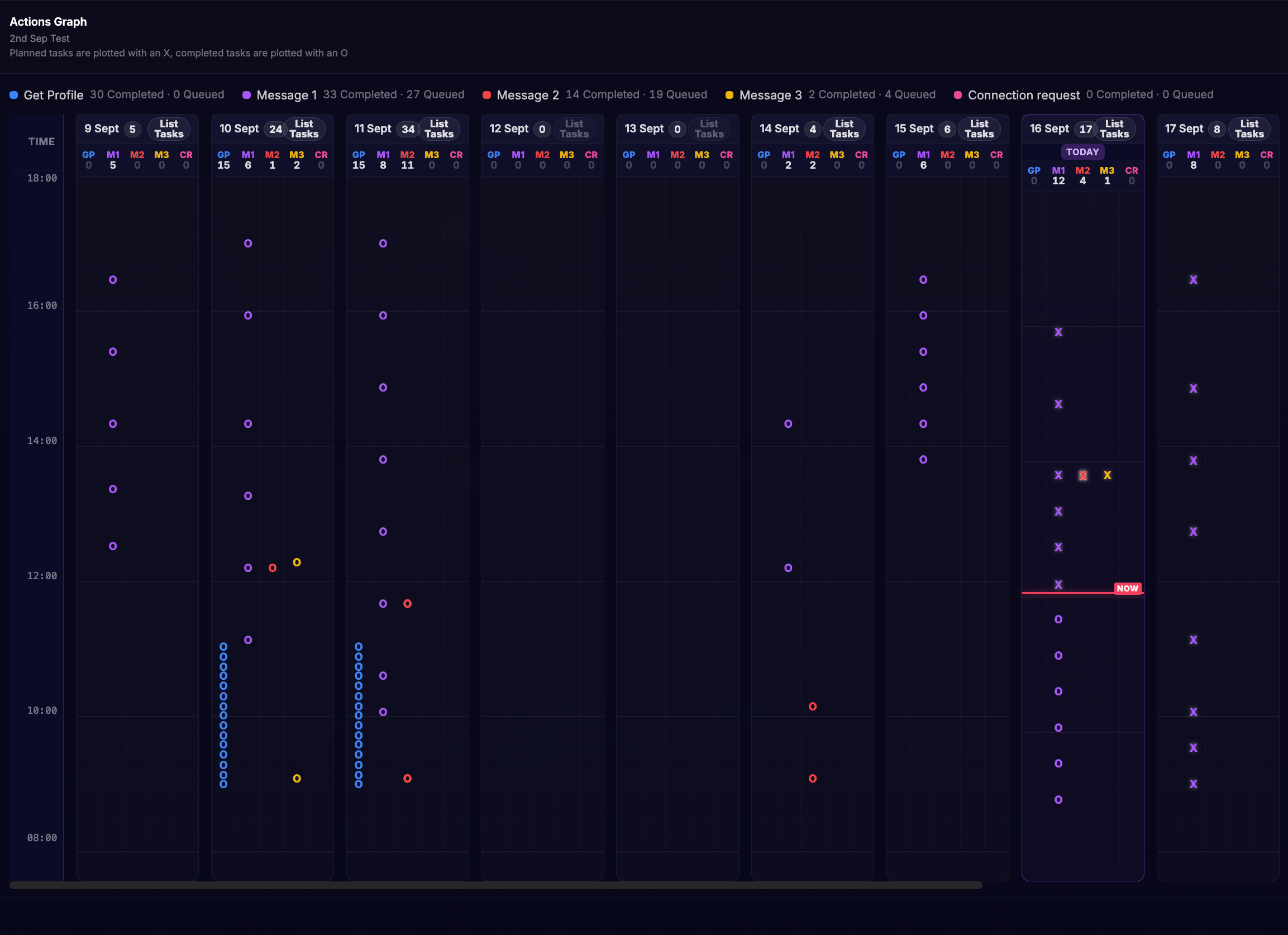
This scatter graph shows planned and completed tasks over the last 7 days, plus upcoming queued work.
X marks are planned / queued tasks
O marks are completed tasks
Action types shown:
Get Profile
Connection request
Message 1
Message 2
Message 3
Each series shows how many are Completed and Queued.
You can:
Turn on Show Track to connect the same lead’s points
Zoom in, Zoom out, or Reset
Open List Tasks for a day to see that day’s actions
Step 7: Activity Graph
From the queue modal, click Activity Graph.
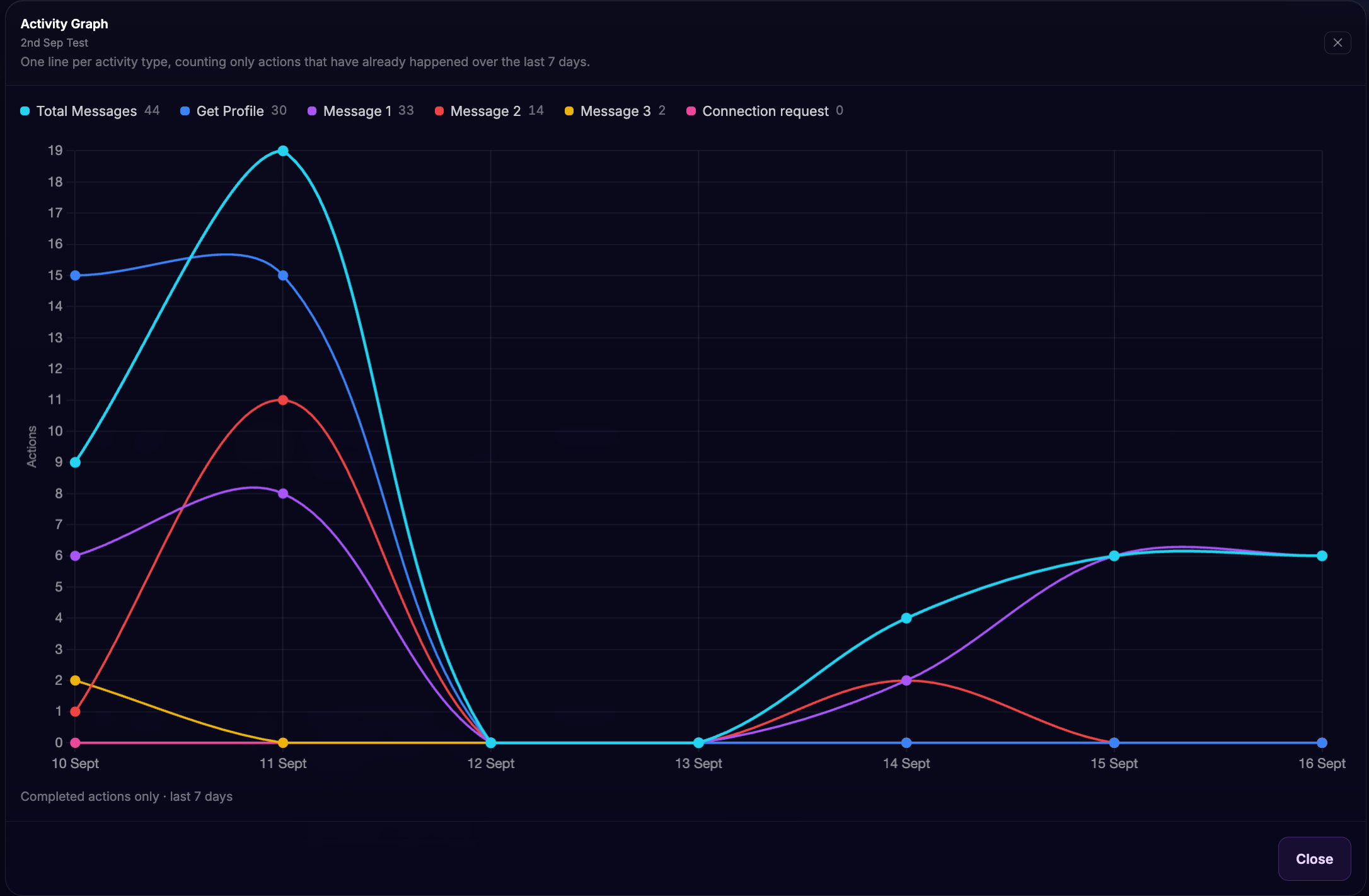
This line chart shows completed actions only over the last 7 days, with one line per activity type:
Total Messages
Get Profile
Message 1
Message 2
Message 3
Connection request
Queued future actions are not included here — use Actions Graph to see what’s planned next.
Important Notes
Campaign stats on this page are scoped to the Date filter you select
For a live overview across all campaigns, use LinkedIn Automation → Dashboard
If a lead replies, the sequence for that lead is stopped
Was this helpful?
Still need help? Ask the team