Inbox Help Guide
How to use the inbox to see your campaign replies, and manage them effectively to get meetings.
The Inbox is where you manage conversations with leads. This guide focuses on Linkedin Automation replies. You can also use Inbox for SMS, WhatsApp, and inbound calls.
Linkedin Vs Linkedin Signals
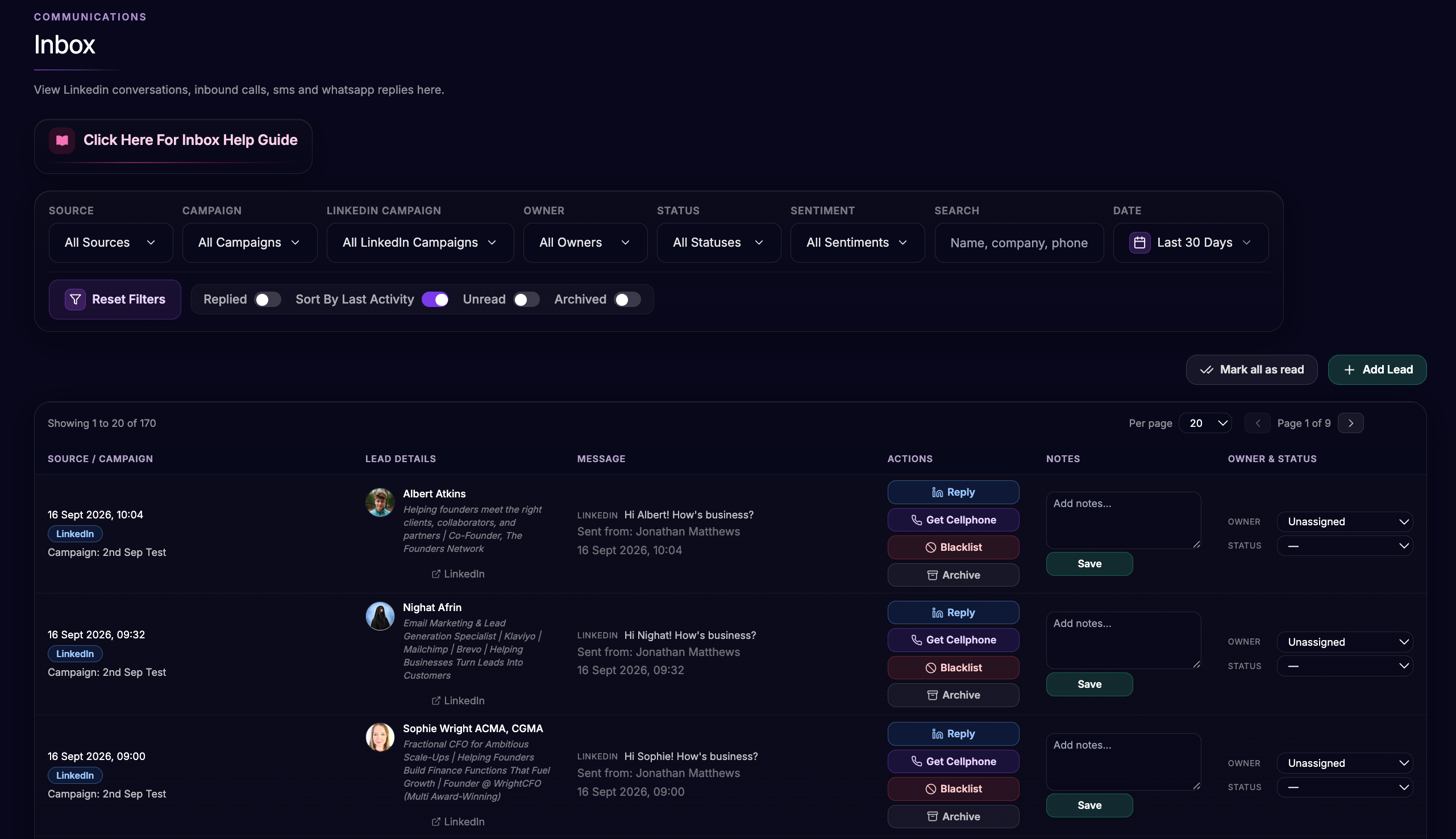
Inbox has two Linkedin-related sources. They are different:
Linkedin — Linkedin Automation DMs and connection activity from your Linkedin campaigns
Linkedin Signals — leads from Linkedin Signals (phone / SMS / WhatsApp style outreach, not Linkedin DMs)
How Linkedin Conversations Appear
Linkedin conversations in Inbox come from your Linkedin Automation campaigns (new connections and existing connections).
Typical flow:
Your campaign sends a connection request and / or messages
The lead accepts and / or replies
The conversation appears in Inbox under Source: Linkedin
You can open it and reply
You may also see pills such as:
Connection Accepted
Replied
Finding Linkedin Conversations
Use the filters at the top of Inbox:
Source — choose Linkedin
Linkedin Campaign — filter to one campaign (or All Linkedin Campaigns)
Owner — filter by assigned owner
Status — filter by your custom statuses
Sentiment — Positive / Negative / Neutral
Search — name, company, phone, email
Date range
Replied — show leads who replied (or accepted / replied on Linkedin)
Unread — unread only
Archived — show archived leads
Sort — Created, or Sort By Last Activity
Reset Filters clears your current filter set.
Reading And Replying On Linkedin
Find the lead in the table
Click Reply
Review the Linkedin conversation thread
Type your message in Type your Linkedin reply...
Send
A successful send shows Linkedin reply sent.
Useful links in the conversation:
Open Linkedin profile
Open Linkedin Conversation (opens the Linkedin messaging thread when available)
Important:
You can only reply once Topa has a Linkedin conversation for that lead (usually after a connection / first campaign message)
If you see No Linkedin conversation id on this lead yet, the conversation is not ready to reply from Inbox yet — wait for connection / message activity, then try again
Opening Reply also marks that Linkedin conversation as read.
Unread Messages
Unread Linkedin replies show on the conversation and in the sidebar badge.
To clear Linkedin unread:
Open Reply on that conversation, or
Use Mark read on the row
Note: Mark all as read currently clears SMS / WhatsApp unread. It does not clear Linkedin unread.
Lead Details And Enrichment
For Linkedin leads you can usually see:
Name, headline, company
Email (if available)
Linkedin profile link
Website (if available)
Get Cellphone:
Click Get Cellphone to enrich the lead
If a number is found, you can Show Number, Copy, then continue with Send Voicemail or Send WhatsApp from Inbox
Owner, Status, Notes, Sentiment
Use Topa as a Mini CRM.
Owner — assign to yourself or a team user (or Unassigned)
Status — set a custom status (manage these on the Statuses page), e.g. Follow Up, Demo Booked, Sale
Notes — add notes and click Save
Sentiment — Positive / Negative / Neutral / Clear
Archive And Blacklist
Archive:
Archive hides the lead from the default Inbox view
Turn on Archived to find and Unarchive leads later
Blacklist:
Blacklist adds the lead's Linkedin URL to your Linkedin URL blacklist
Matching leads will stop receiving further Linkedin automation messages
A Linkedin URL is required to blacklist
Use blacklist when someone asks not to be contacted, or when you want to permanently stop automation for that profile.
Tips For Linkedin Inbox
Filter Source to Linkedin first so SMS / WhatsApp noise does not get in the way
Use Linkedin Campaign + Replied to review warm replies from one campaign
Use Sort By Last Activity when you want the newest replies at the top
After a positive Linkedin reply, use Get Cellphone then Send Voicemail / Send WhatsApp to multi-channel follow up
Keep Statuses simple so your team can triage quickly
Related Guides
Monthly Plan For Linkedin Automation
Blacklist (DNC)
Statuses (in-app)
Need Help?
Email support@topa.io
Was this helpful?
Still need help? Ask the team