Phone Number Management
Manage Twilio numbers in Topa — sync lines, configure inbound call routing, webhooks, and positive reply alerts.
Phone Number Management
The Phone Numbers page is where you manage every Twilio number connected to your Topa account. After you add Twilio credentials, Topa syncs your numbers and lets you control what happens when someone calls or texts each line — including call routing, inbound webhooks, and alerts when a campaign contact replies positively to SMS.
Use this page for numbers you send campaigns from and for inbound lines that receive replies from prospects.
Before you start: connect Twilio
You must add at least one Twilio account before numbers appear on this page.
In the sidebar, open Twilio Settings
Add your Twilio Account SID and Auth Token
Give the account a friendly name (for example: Primary Account)
Save the credentials
If you have not connected Twilio yet, the Phone Numbers page shows a warning with a link to Add Twilio Credentials. See the Twilio starter guide for full setup steps.
Step 1: Open Phone Numbers and sync
In the sidebar, click Phone Numbers
Click Sync with Twilio in the top-right toolbar
Topa pulls every phone number from your connected Twilio account(s) and displays them in the Active Numbers table. Run sync again any time you buy a new number in Twilio or want to refresh routing in Topa.
The Phone Numbers page — sync your Twilio lines and manage routing, webhooks, and alerts per number.
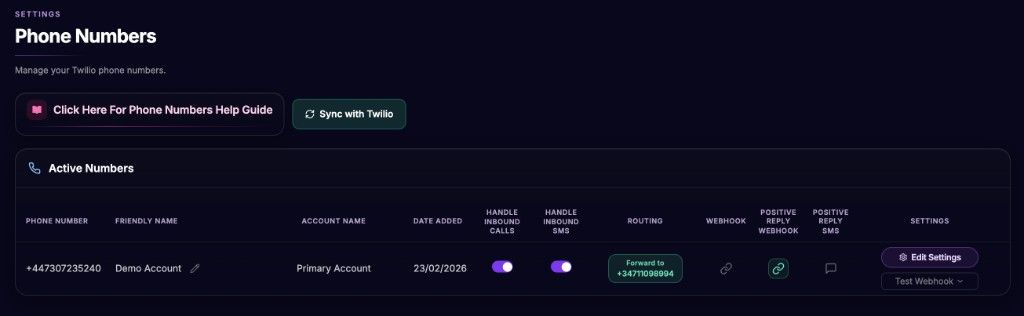
Step 2: Understand the table
Each row is one phone number. The main columns are:
Step 3: Configure inbound call routing
Click Edit Settings on a number to open the routing modal. Choose one of three behaviours:
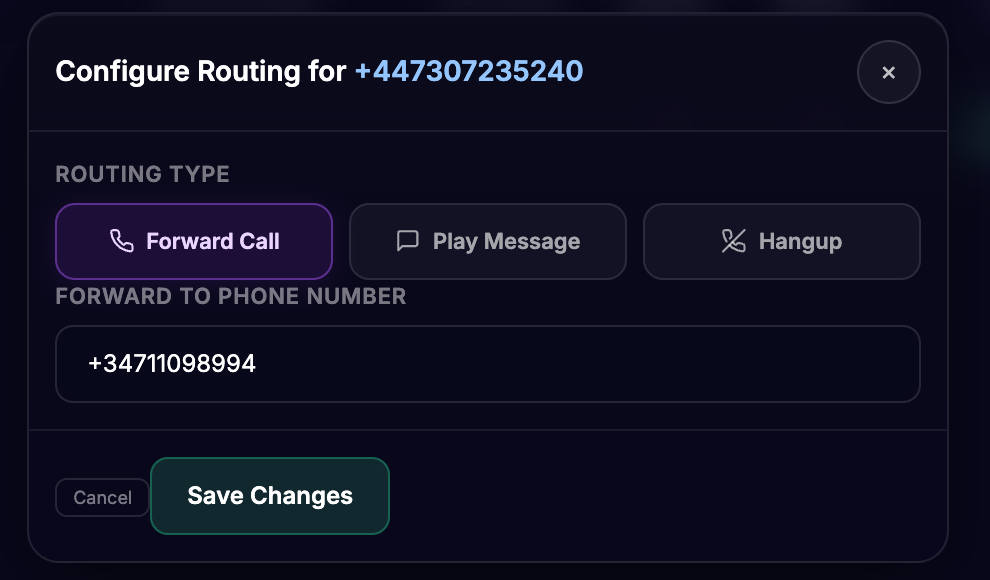
Forward Call
Ring another phone number when someone calls this Twilio line. Enter the destination in E.164 format (for example +12125551234).
Play Message
Answer the call and play an Ai-generated voicemail message. Write the script, pick a voice (stock or cloned), preview the audio, then save. Topa stores the generated audio and plays it to callers.
Hangup
Immediately end inbound calls without forwarding or playing a message.
After saving, the Routing column shows your active rule (for example Forward to +1 212 555 1234 or Play Message).
Step 4: Configure inbound webhooks
Click the link icon in the Webhook column to open webhook settings for that number.
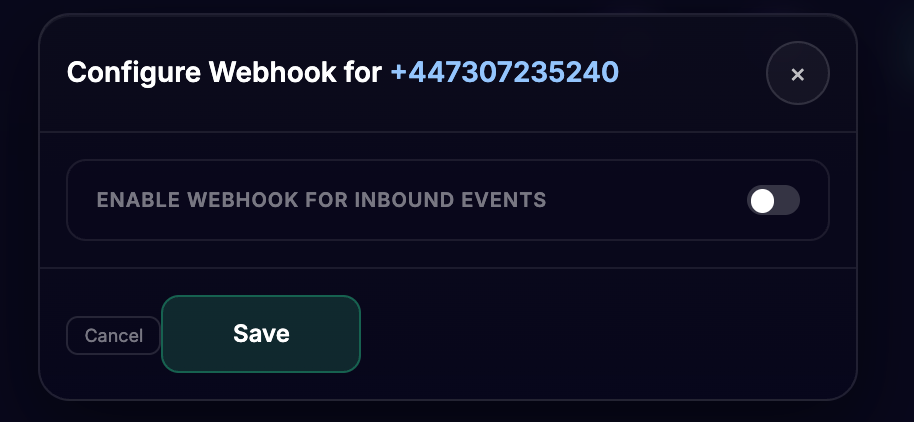
Toggle Enable Webhook for Inbound Events on
Paste your HTTPS endpoint (for example a Zapier or Make hook)
Click Save
Topa sends a POST request to this URL for every inbound call or SMS to the number. Use Test Webhook in the Settings column to send sample payloads (see examples below).
Step 5: Configure positive reply alerts
When a prospect replies positively to an SMS campaign for the first time, Topa can notify you two ways — per number:
Positive Reply Webhook
Click the link icon under Positive Reply Webhook.
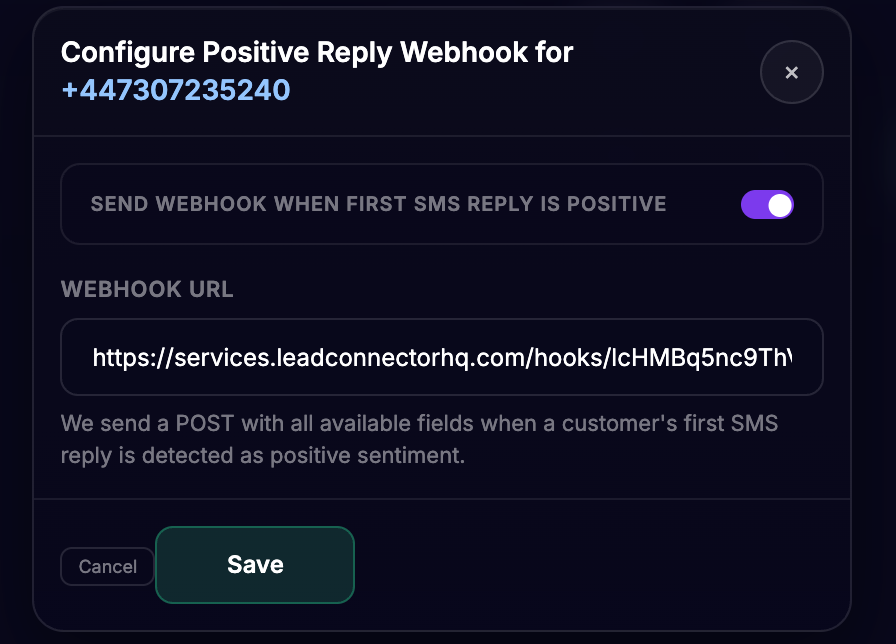
Toggle Send webhook when first SMS reply is positive on
Enter your webhook URL
Click Save
Topa POSTs a JSON payload with the reply text, contact details, campaign name, and sentiment when the first reply is classified as positive.
Positive Reply SMS
Click the message icon under Positive Reply SMS.
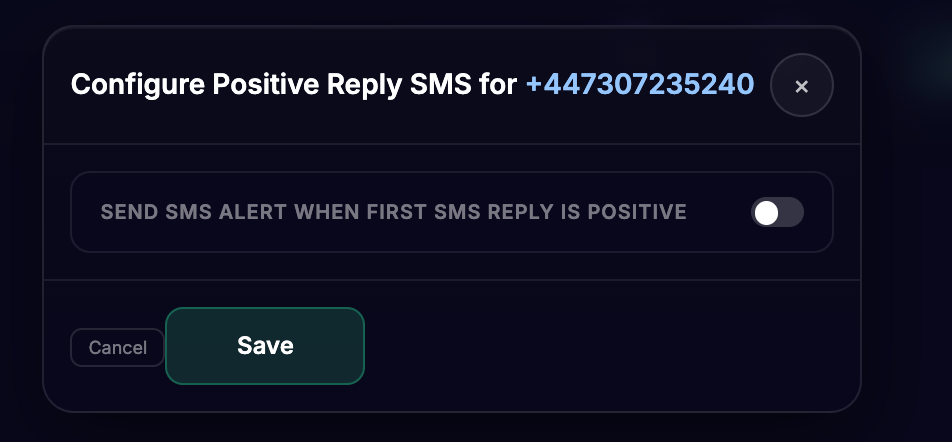
Toggle Send SMS alert when first SMS reply is positive on
Choose which of your Topa numbers should send the alert
Enter the mobile number that should receive the alert
Click Save
The alert message looks like: You have a new positive SMS reply in Topa.io — "{customer reply}"
Step 6: Test your webhooks
After saving a webhook URL, use Test Webhook on the same row. Pick the event type:
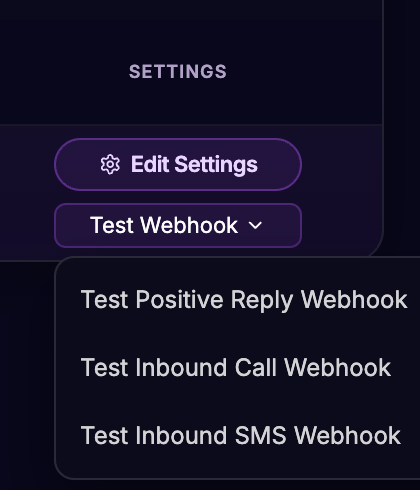
Test Positive Reply Webhook
Test Inbound Call Webhook
Test Inbound SMS Webhook
Topa sends a dummy payload from the server (so your browser is not blocked by CORS). Configure the endpoint first — if no URL is saved, Topa shows an error asking you to set one up.
Verified Caller ID numbers
If you want to use a external number to send voicemails from you can. Such as if you have a number in Go High Level, but you want to use it in Topa.
You can add a “Verified Caller Id” in Twilio.
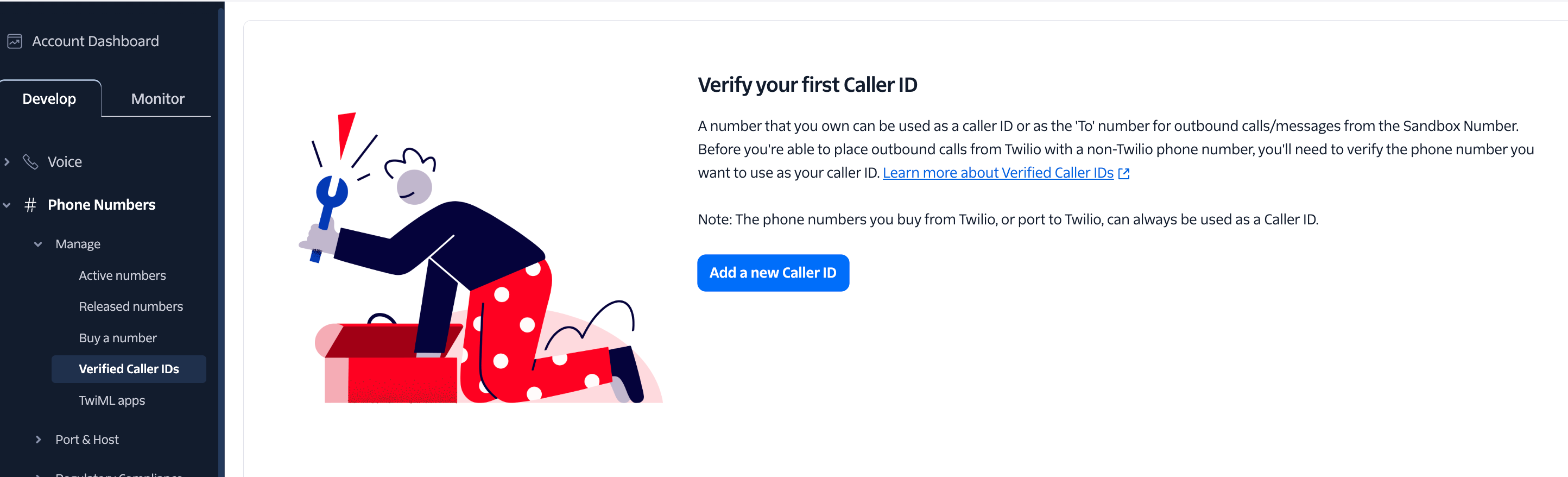
Once added, you can then click Sync in topa and the number will be available to send Ai Voicemails from only.
Please note, if you do this, inbound calls and sms will be managed wherever your number is hosted e.g. back in go high level or wherever else you got the number from. Topa reporting will also not working if people call back or reply via sms.
Webhook payload examples
Test webhooks use the same JSON shape as live events. Empty fields are sent as empty strings.
Inbound call webhook
{ "Date": "2026-06-16", "CallTime": "14:30:00", "CustomerNumber": "+15559876543", "CustomerName": "Test Customer", "Company": "Test Company", "Email": "test@example.com", "LinkedinUrl": "", "Campaign": "N/A", "InboundNumber": "+15551234567", "Destination": "Inbound Call", "SMS Reply": ""}Inbound SMS webhook
{ "Date": "2026-06-16", "CallTime": "14:30:00", "CustomerNumber": "+15559876543", "CustomerName": "Test Customer", "Company": "Test Company", "Email": "test@example.com", "LinkedinUrl": "", "Campaign": "N/A", "InboundNumber": "+15551234567", "Duration": "", "Destination": "SMS Reply", "SMS Reply": "Test inbound SMS message"}Positive reply webhook
{ "event_type": "positive_sms_reply", "sentiment": "Positive", "is_first_reply": true, "Date": "2026-06-16", "CallTime": "14:30:00", "CustomerNumber": "+15559876543", "CustomerName": "Test Customer", "Company": "Test Company", "Email": "test@example.com", "LinkedinUrl": "", "Custom1": "", "Custom2": "", "Custom3": "", "Campaign": "Test Campaign", "InboundNumber": "+15551234567", "Duration": "", "Destination": "SMS Reply", "SMS Reply": "Yes, I'm interested!", "message_sid": null, "sms_reply_id": null, "message_id": null, "campaign_id": null, "user_id": "your-user-id", "received_at": "2026-06-16T14:30:00.000Z"}Was this helpful?
Still need help? Ask the team